Features
A complete tour of everything Clipcat offers - from basic capture to advanced privacy controls.
Automatic Capture
The moment you press Ctrl+C (or ⌘+C on Mac), Clipcat saves it. Text, rich text, and images are all captured instantly with zero configuration.
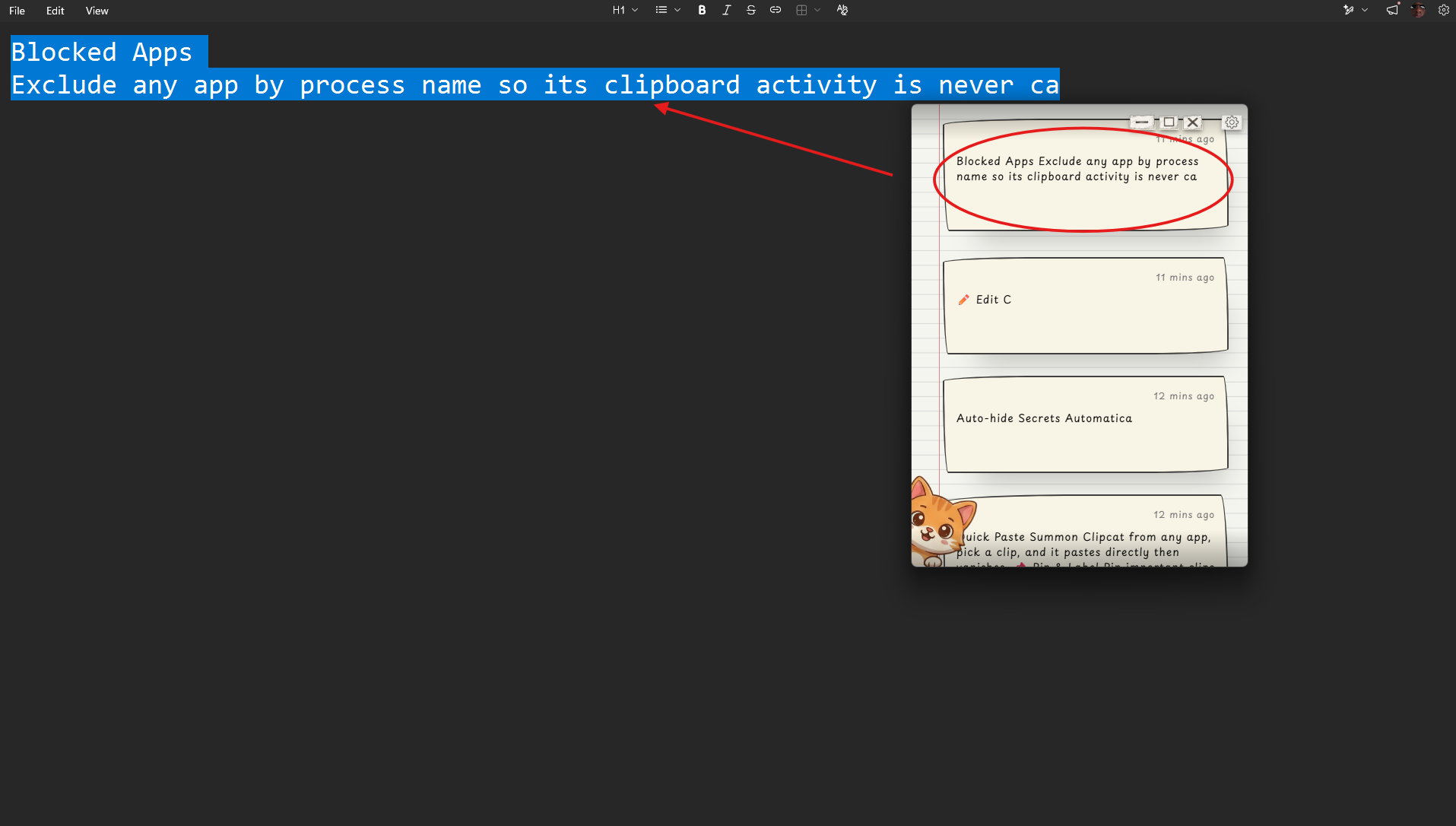
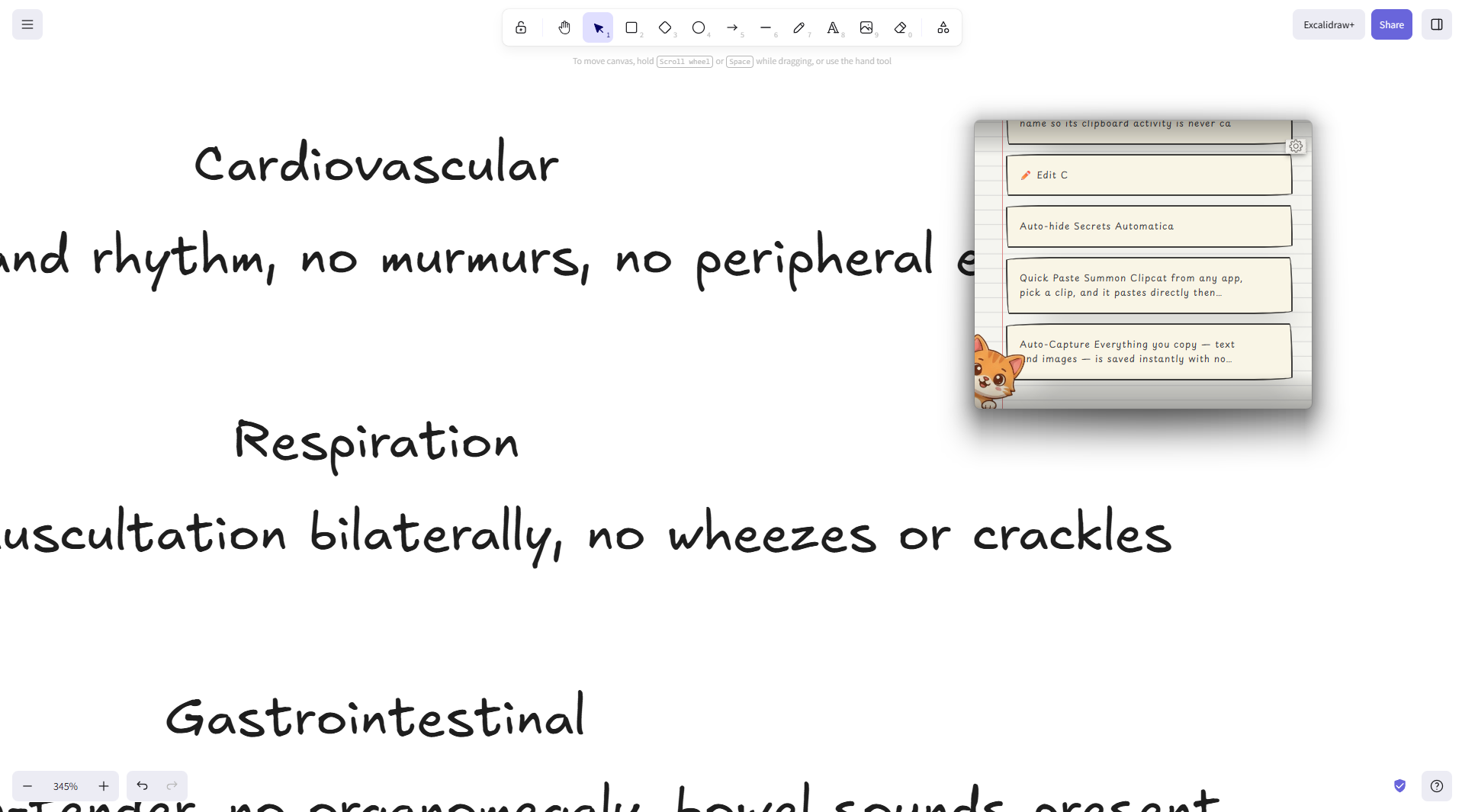
Quick Paste Mode
Enable Quick Paste in Settings, then:
- Work in any app
- Copy something or need something old
- Press Ctrl+Shift+V (or ⌘+Shift+V)
- Clipcat summons, pick a clip
- It pastes directly into your previous window and disappears
Enabling Quick Paste automatically turns on Mini Clip mode too. You can also toggle Quick Paste from the ⚡ button in the toolbar next to Search.
Pin Clips
Click the pin icon on any clip to lock it to the top of your list. Pinned clips are never pushed out when the storage limit is reached, regardless of how many other clips come in.
Labels
Tag any clip with a custom label to categorize your history. A label filter bar appears above your clips - click any label to filter instantly.
Instant Search
Press Ctrl+F (or ⌘+F) to focus the search bar and filter your entire clipboard history in real time. Works across clip content, not just titles. On small screens (tablets or narrow windows), the search bar collapses into a toggle button to save space - same as in Mini Clip mode.
Edit Clips
Click the pencil icon on any clip card to open an inline editor. Fix typos, update content, or rewrite the clip entirely - no need to re-copy from the original source.
Privacy Mode
Press Alt+H to instantly blur all clip content. Useful when:
- Screen sharing in a meeting
- Working in a public place
- Presenting to others
The blur persists until you toggle it off. State is not saved between sessions.
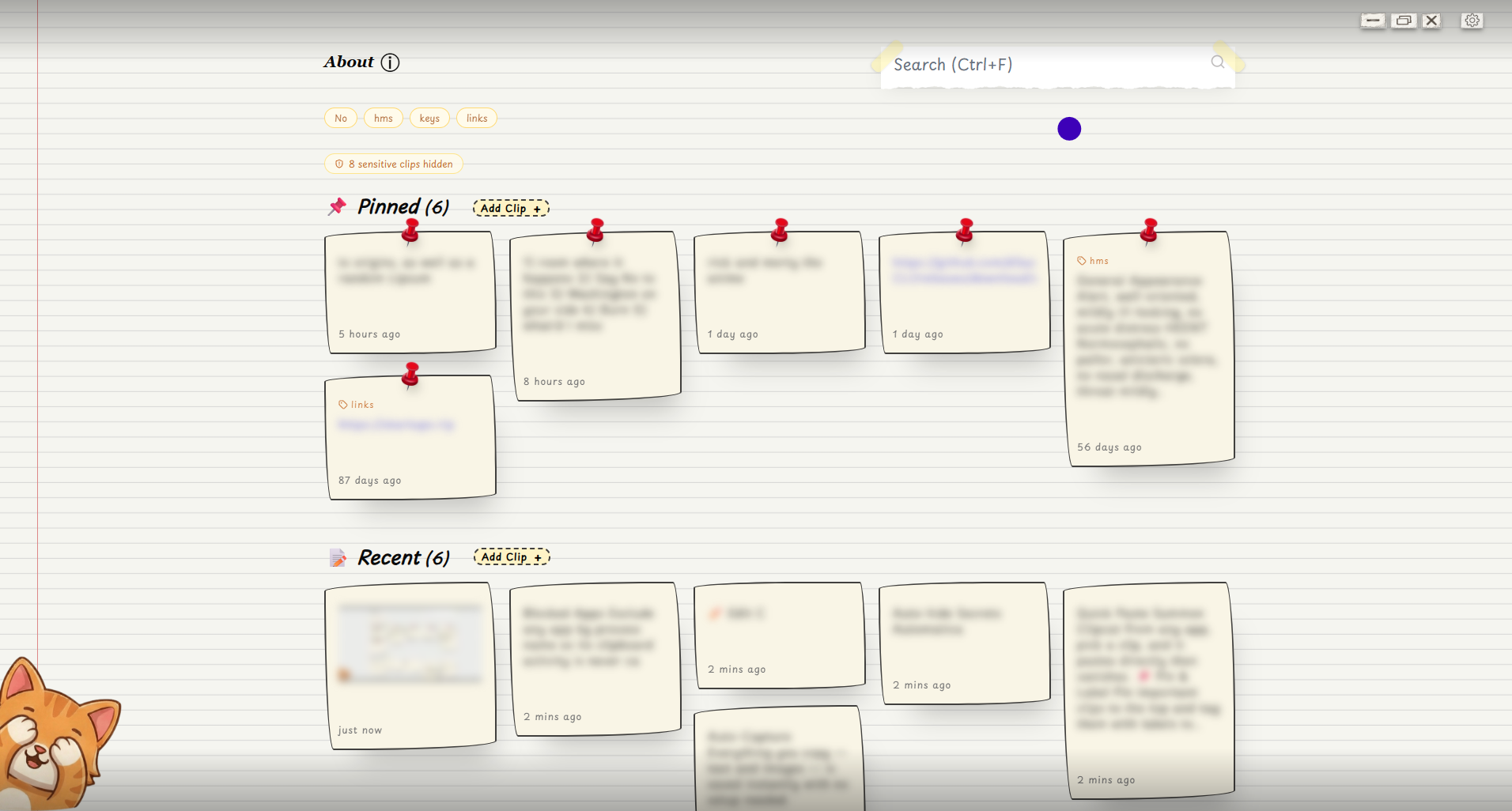
Auto-hide Sensitive Clips
Clipcat automatically detects clips that look like:
- Passwords
- API keys and tokens
- JWTs
- Private keys
- High-entropy secret strings
These clips are collapsed into a separate section and hidden by default. You can reveal or mark them safe individually. Toggle this feature in Settings -> Clipboard.
Blocked Apps
Add a process name (e.g. 1password.exe, Bitwarden.exe) in Settings -> Blocked Apps and Clipcat will never capture clipboard content from that application.
This works by checking the foreground window's process name at the moment the clipboard changes.
Mini Clip Mode
A compact window that stays out of your way. Toggle with Alt+M. The mode state persists between sessions. Mini Clip mode automatically keeps the window always on top so it floats above other apps - no separate setting needed.
Smart Position
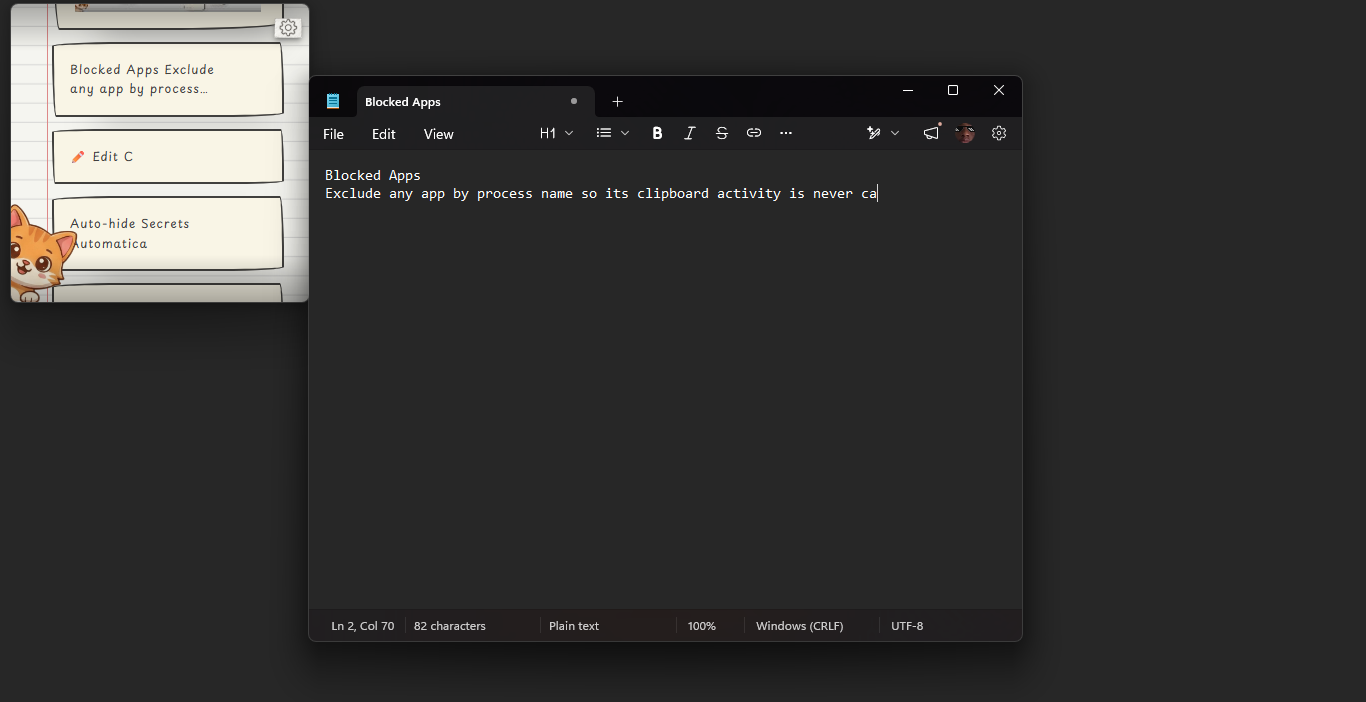
When Quick Paste summons the Clipcat window, Smart Position moves it right next to your cursor so it's immediately within reach - no hunting across the screen.
- Positions the window below-right of the cursor by default
- Flips horizontally or vertically when the window would clip off the screen edge
- Fully clamped to stay on-screen in all cases, including multi-monitor setups
- On by default. Toggle in Settings -> Window (only applies while Quick Paste is enabled)
Pause Capture
Temporarily stop recording clipboard changes without quitting the app. Useful when working with sensitive data you don't want stored. Toggle in Settings -> Clipboard.
Bulk Delete
Clear your history in one click with options to delete:
- All clips
- Only pinned clips
- Only unpinned clips
Always shown with a confirmation prompt to prevent accidents.
Manual Clip Creation
Add clips directly from within the app using the + Add Clip button. You can optionally pin the clip from the creation dialog.
Clickable Links
URLs detected inside clip text are automatically rendered as clickable links. Click them to open in your default browser.
Relative Timestamps
Every clip shows a live-updating relative time: "2 minutes ago", "yesterday", "3 days ago".
Sound Effects
Satisfying audio feedback on every action. Toggle with Alt+S or in Settings -> System.
Configurable Storage Limit
Choose how many clips to keep (100-500). Older unpinned clips are automatically removed when the limit is reached. Pinned clips are always preserved. Adjust in Settings -> Clipboard.
Command Palette
Press Ctrl+K (or Ctrl+Shift+P) to open the command palette - a fuzzy-searchable list of every quick action in Clipcat. Toggle Quick Paste, Mini Clip mode, privacy mode, sound, and more without navigating menus.
The palette appears as an overlay centered on screen, with results grouped by category and filtered as you type. Press Escape to dismiss.
LAN Sync
Sync your clipboard across devices on the same local network, end-to-end encrypted. Every clip you copy is broadcast to connected peers in real time.
- End-to-end encrypted using AES-GCM with a key derived from a shared passphrase
- Peer discovery via mDNS - no configuration, no server, no account
- Real-time sync - clips arrive on connected devices as you copy them
- Works for text and images
- Configure in Settings -> Network
Enable LAN sync, set a passphrase (peers on other machines use the same one), and devices on your network find each other automatically. The peer count shows how many devices are currently connected.
Load on Startup
Optionally launch Clipcat automatically when your system starts. Toggle in Settings -> System.
System Tray
Clipcat lives quietly in your system tray. Right-click for options or double-click to show/hide the window.