Getting Started
Clipcat is a clipboard manager that automatically saves everything you copy - text and images - so you can find it, reuse it, and manage it without thinking about it.
It runs on Windows, macOS, and Linux as a lightweight tray app with no cloud, no account, and no tracking.
Download
Pick your platform and download the latest release:
| Platform | Download |
|---|---|
| Windows | Clipcat-windows-amd64-installer.exe |
| macOS (Apple Silicon) | Clipcat-macos-arm64.dmg |
| macOS (Intel) | Clipcat-macos-amd64.dmg |
| Linux x86-64 (binary) | Clipcat-linux-amd64 |
| Linux (.deb) | Clipcat-linux-amd64.deb |
Clipcat is fully open source and safe, but has no code-signing certificate yet. See the first-run notes below for how to bypass the OS warning.
First-Run Notes
Windows - SmartScreen
- Click More info
- Click Run anyway
Or right-click the .exe -> Properties -> check Unblock -> Apply.
macOS - Gatekeeper
Right-click the .dmg -> Open -> click Open in the dialog.
Alternatively, go to System Settings -> Privacy & Security and click Open Anyway after the first blocked attempt.
Clipcat needs Accessibility permission to simulate paste (Cmd+V). Grant it under System Settings -> Privacy & Security -> Accessibility.
Linux
Option 1 - Standalone binary
chmod +x Clipcat-linux-amd64
./Clipcat-linux-amd64
Option 2 - .deb package (Debian / Ubuntu / Mint)
sudo dpkg -i Clipcat-linux-amd64.deb
# Or install missing deps if needed:
sudo apt install -f
The .deb packages Clipcat as /usr/local/bin/clipcat and declares runtime dependencies on libgtk-4-1 and libwebkitgtk-6.0-4 for automatic resolution.
Install xdotool for window focus and paste simulation:
sudo apt install xdotool
Clipcat bundles its own clipboard monitoring - XFixes extension on X11 (event-driven) and wl-clipboard on Wayland (polling).
If you're on Wayland (e.g. COSMIC, GNOME on Wayland), also install:
sudo apt install wl-clipboard
App Screenshot
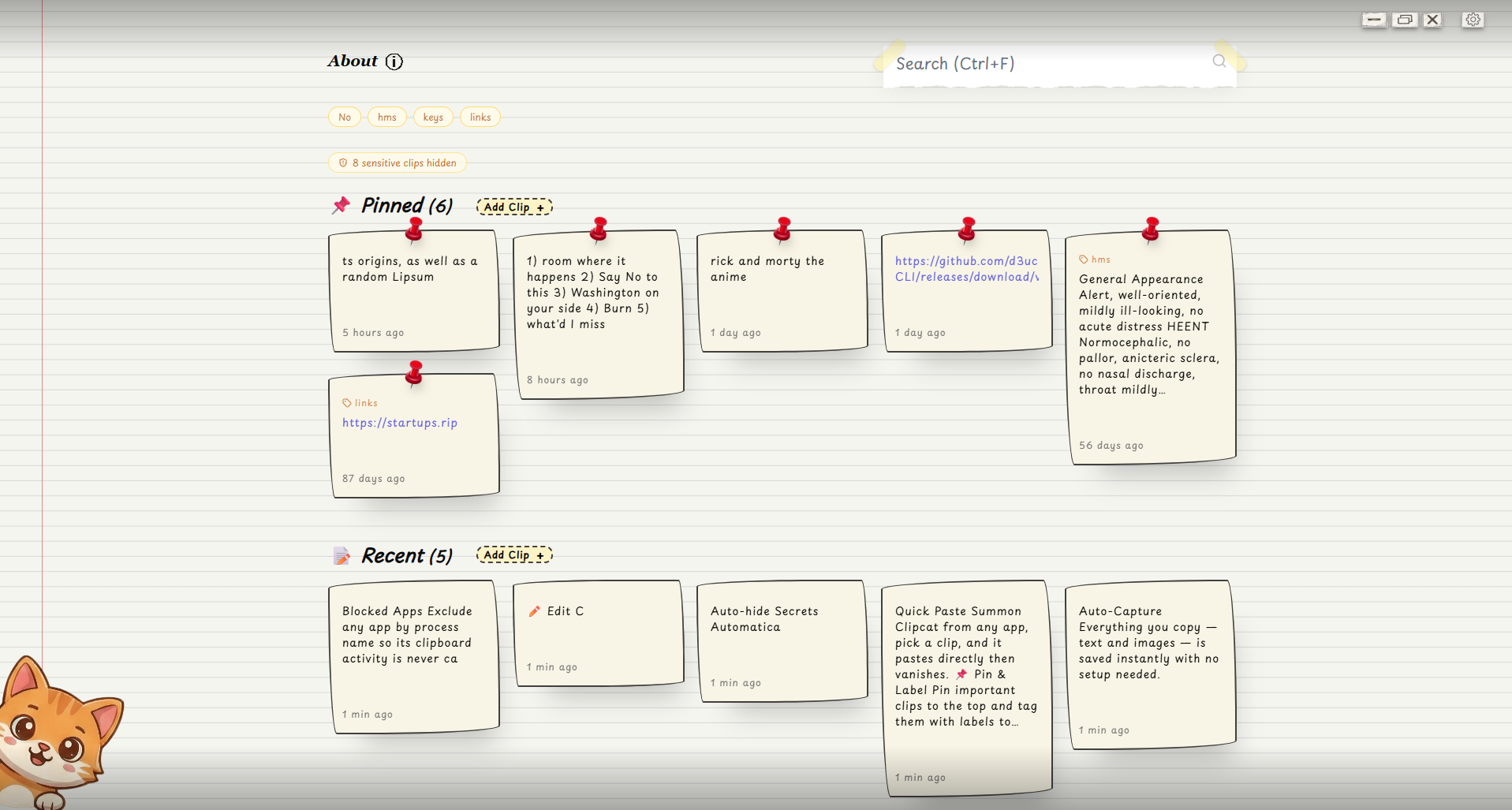
Where Are My Clips Stored?
All clips are saved in a local SQLite database. No data ever leaves your machine.
| Platform | Path |
|---|---|
| Windows | %APPDATA%\clipussy\db\gyatt.db |
| macOS | ~/Library/Application Support/clipussy/db/gyatt.db |
| Linux | ~/.config/clipussy/db/gyatt.db |