Privacy & Security
Clipcat is built with privacy as a first-class concern. Your clipboard data stays on your machine - always.
Your Data Stays Local
Every clip is stored in a SQLite database on your device. Clipcat makes no network requests with your clipboard content, has no account system, and sends no telemetry.
| Platform | Database Location |
|---|---|
| Windows | %APPDATA%\clipussy\db\gyatt.db |
| macOS | ~/Library/Application Support/clipussy/db/gyatt.db |
| Linux | ~/.config/clipussy/db/gyatt.db |
You own the file. You can inspect it, move it, back it up, or delete it at any time.
Auto-hide Sensitive Clips
Clipcat automatically scans captured text and collapses clips that match patterns for sensitive content:
- Passwords - common credential patterns
- API keys - common service prefixes (
sk-,ghp_,AIza, etc.) - Tokens - OAuth and bearer tokens
- JWTs - JSON Web Tokens (three base64 segments separated by
.) - Private keys - PEM-format keys (
-----BEGIN ... KEY-----) - High-entropy strings - short strings with unusually high Shannon entropy that are likely secrets
Sensitive clips are collapsed into a separate "Sensitive" section at the bottom of your clip list. They are not shown inline with normal clips.
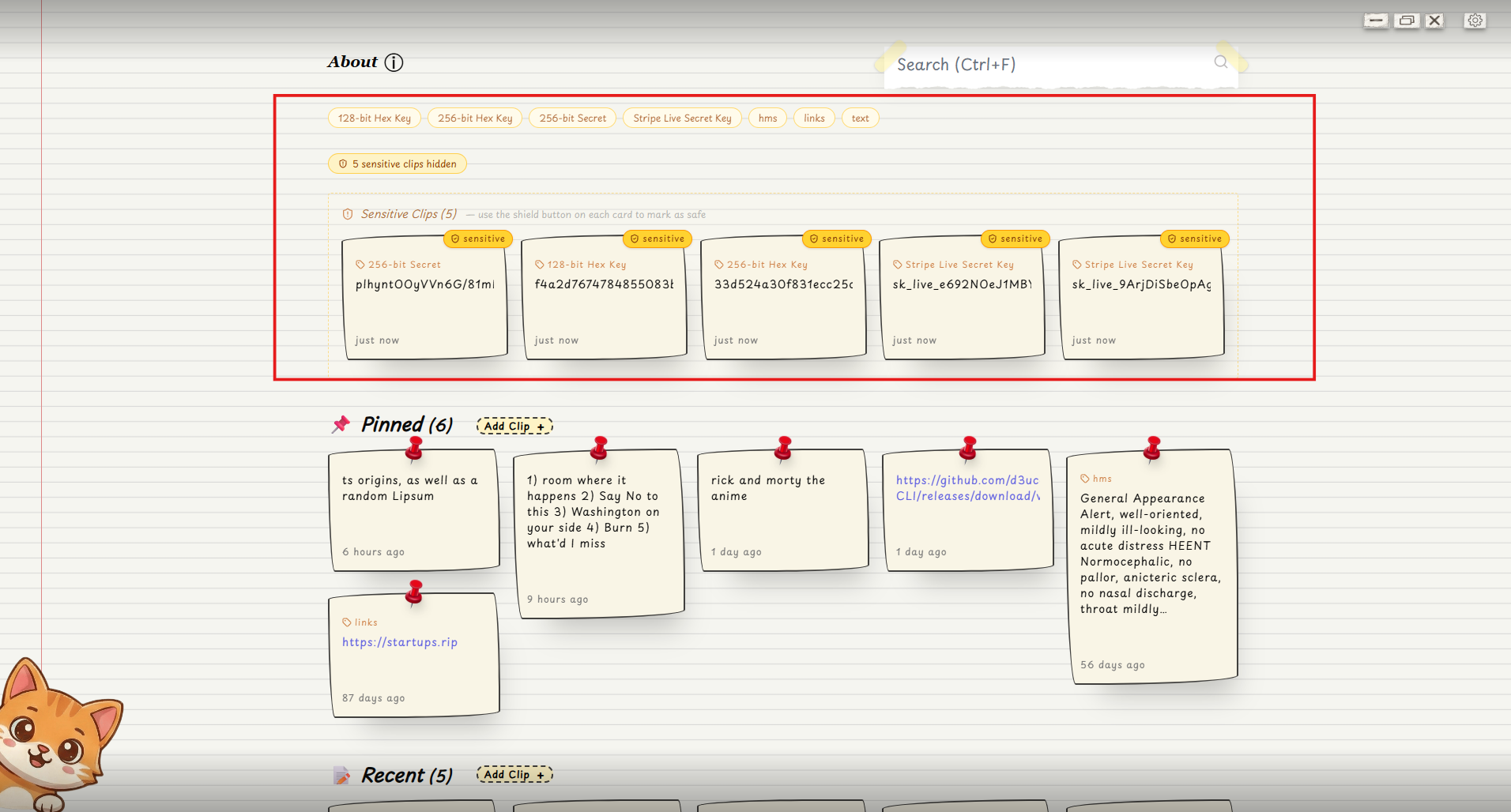
Revealing a Sensitive Clip
Click the "Reveal" button on a sensitive clip to temporarily show its content. You can also mark it safe if you know it isn't actually sensitive - this moves it back to your normal clip list permanently.
Toggling Auto-hide
Go to Settings -> Clipboard -> Auto-hide Sensitive to turn this feature on or off. When disabled, all clips appear in the main list regardless of content.
Privacy Mode
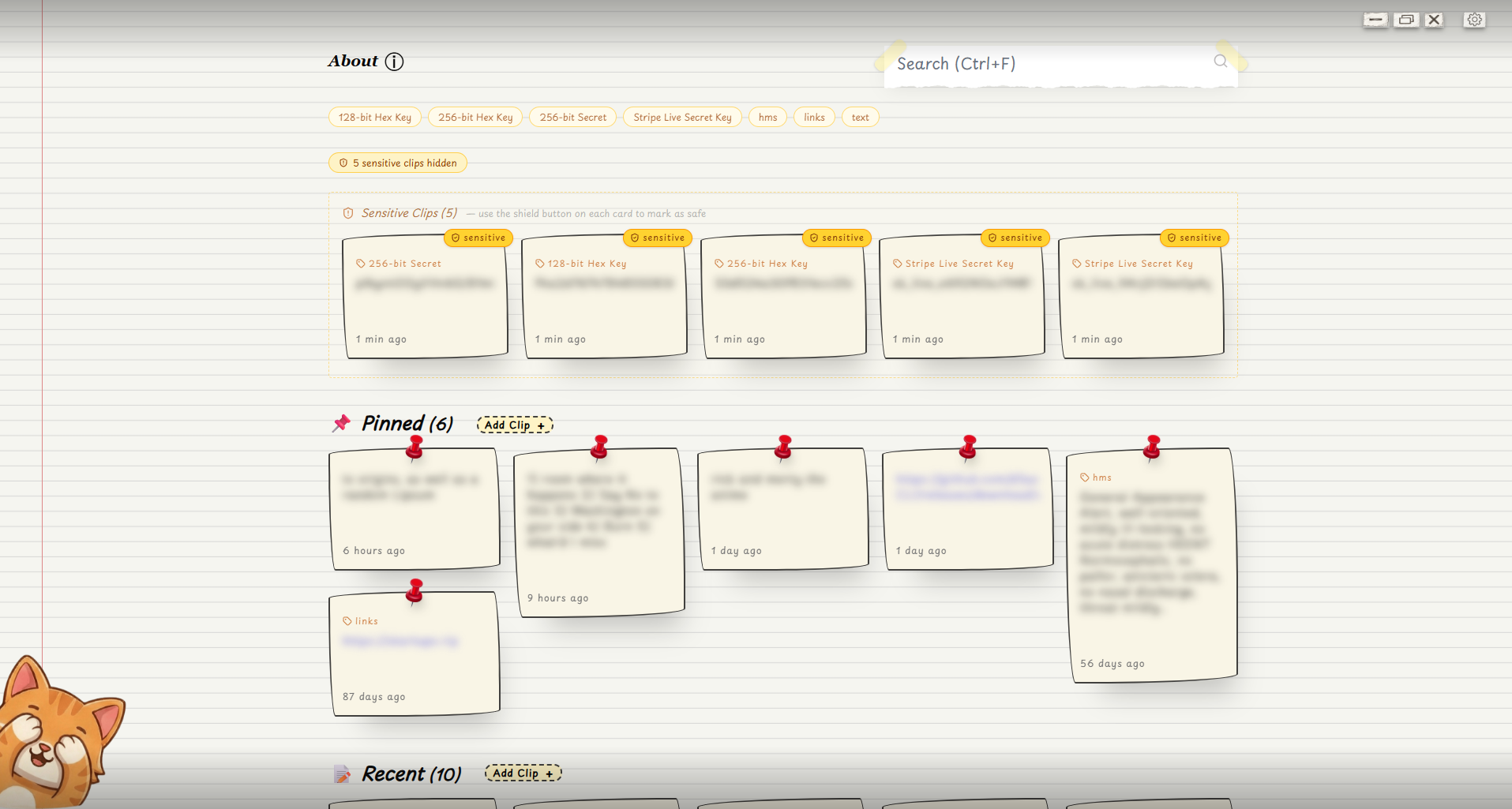
Press Alt+H to blur all clip content in the UI instantly. This is useful when:
- Screen sharing in a video call
- Working in a public space
- Giving a presentation
The blurred state is not saved between sessions - when you reopen Clipcat it will show clips normally.
Blocked Apps
Add any application's process name in Settings -> Blocked Apps and Clipcat will silently ignore any clipboard changes that originate from that app. This is the recommended approach for:
- Password managers (1Password, Bitwarden, KeePass, etc.)
- Banking or financial apps
- Any app that copies credentials
How it works: When your clipboard changes, Clipcat checks which app had focus at that moment. If its process name is in your blocklist, the clip is discarded before it's ever saved to the database.
Pause Capture
Use Settings -> Clipboard -> Pause Capture to temporarily stop recording clipboard changes entirely. The tray icon will reflect the paused state. Resume at any time from the same toggle.
LAN Sync Encryption
Clipcat's LAN sync feature uses AES-256-GCM to encrypt clipboard data before it leaves your machine. The encryption key is derived from a user-supplied passphrase using PBKDF2 with 600,000 iterations.
Clipcat does not operate a sync server - discovery and data transfer happen entirely over your local network via mDNS and direct TCP connections. No clipboard data ever reaches the internet.
Open Source
Clipcat is fully open source. Every line of code is available at github.com/d3uceY/Clipcat. You can audit the clipboard capture logic, the database layer, and the secret scanning rules yourself.
Key files to review:
backend/lib/clipboard/- clipboard listener per platformbackend/lib/secretscan/- sensitive content detection rulesbackend/store/- database reads and writes