Settings
Open Settings from the gear icon in the top-right corner of Clipcat. All settings are saved locally and apply instantly.
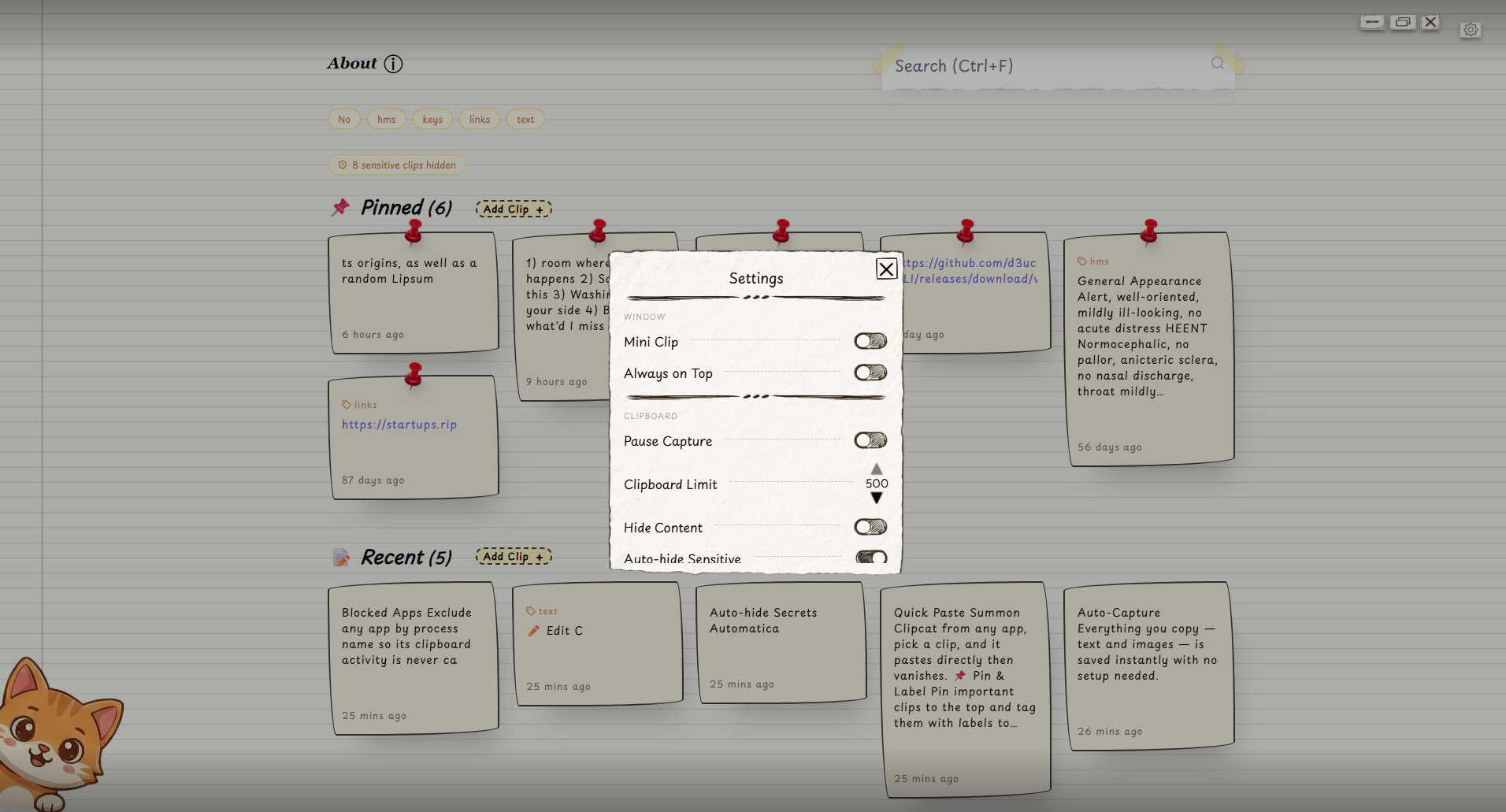
Clipboard
| Setting | Description |
|---|---|
| Clipboard Limit | How many clips to keep in history. Range: 100-500. Oldest unpinned clips are removed when the limit is reached. Pinned clips are always preserved. |
| Pause Capture | Temporarily stop recording clipboard changes. Useful when working with sensitive content you don't want saved. |
| Hide Content | Blur all clip content instantly. Useful for screen sharing or working in public. Toggle with Alt+H. |
| Auto-hide Sensitive | Automatically detect and collapse clips that look like passwords, API keys, tokens, JWTs, or private keys. Hidden clips can be revealed individually. |
Blocked Apps
Add a process name to the blocklist and Clipcat will never capture clipboard content from that application.
Examples:
1password.exe- 1Password (Windows)Bitwarden.exe- Bitwarden (Windows)1Password- 1Password (macOS)
Clipcat checks the foreground window's process name at the moment your clipboard changes. If it matches a blocked entry, the clip is silently discarded.
Finding a process name
Use your OS task manager to find the exact process name for an app you want to block.
Window
| Setting | Description |
|---|---|
| Mini Clip | Compact window that stays out of your way. Automatically enables Always on Top so it floats above other windows. Toggle with Alt+M. State persists between sessions. |
| Smart Position | When Quick Paste summons the window, it appears right next to your cursor instead of wherever it last was. Always clamped to stay fully on-screen, including on multi-monitor setups. Only active while Quick Paste is enabled. On by default. |
Network
| Setting | Description |
|---|---|
| LAN Sync | Toggle LAN clipboard sync on or off. When enabled, clips are broadcast to other Clipcat instances on the same local network in real time. |
| Passphrase | A shared passphrase used to encrypt all sync traffic. Every device must use the same passphrase. Cannot be blank when sync is enabled. |
| Peers | Shows the number of currently connected devices on the network. Updates in real time as peers join or leave. |
Sync uses mDNS for automatic peer discovery - no IP addresses, no server, no account. Traffic is encrypted with AES-GCM using a key derived from the passphrase.
System
| Setting | Description |
|---|---|
| Load on Startup | Automatically launch Clipcat when your system starts. |
| Sound Effects | Enable or disable audio feedback on every action. Can also be toggled with Alt+S. |
| Quick Paste | Hides Clipcat to the tray. Press the global shortcut from any app to summon it, pick a clip, and it pastes directly into your previous window then disappears. Enabling this also turns on Mini Clip mode. Also accessible from the ⚡ toolbar button next to Search. |
About
Shows the current Clipcat version and a link to the GitHub releases page for updates.