Dashboard
The Dashboard (labelled Overview inside the app) is the first page you see when Cokpyt opens. It gives you a real-time snapshot of your entire Python environment at a glance.
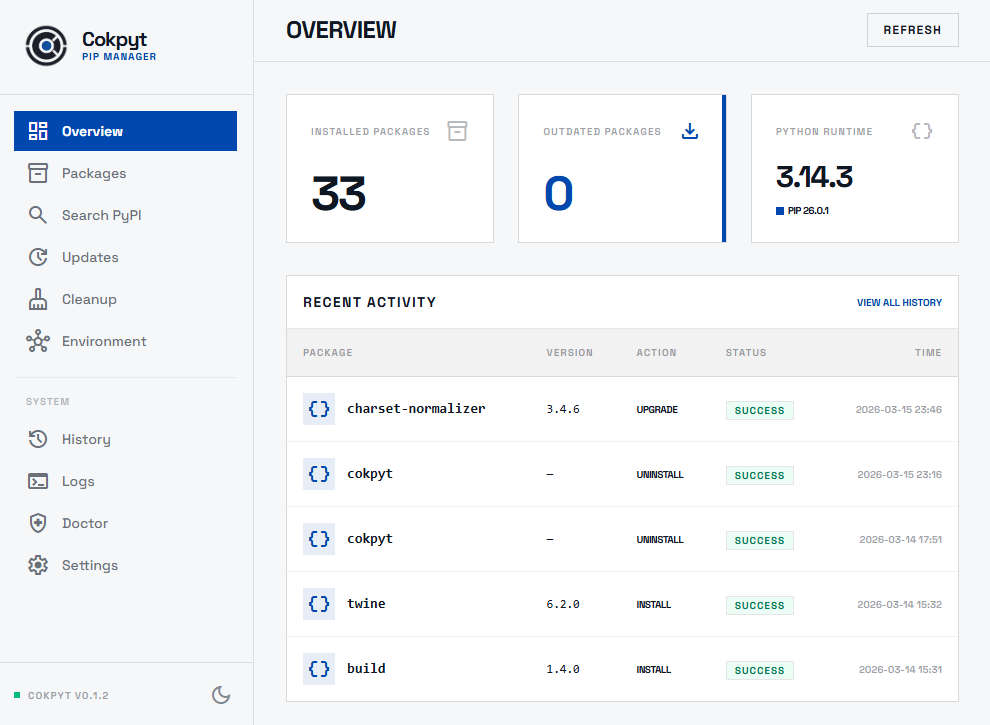
Stat Cards
Three cards run across the top of the page:
| Card | What it shows |
|---|---|
| Installed Packages | Total number of packages currently in the active environment |
| Outdated Packages | How many of those packages have a newer version available on PyPI |
| Python Runtime | Active Python version and pip version, read from the environment at startup |
All three cards refresh each time you click the Refresh button in the page header.
Recent Activity
Below the stat cards is a table of your 5 most recent pip actions pulled straight from the History log. Each row shows the package name, version, action type (Install / Upgrade / Uninstall), status badge (success / failed), and timestamp.
Click View All History in the table header to navigate directly to the full History page.
Actions
Refresh
Click Refresh (top-right of the page header) to re-query your live environment. This re-fetches:
- The full installed-package list
- The outdated-package list
- Python / pip version information
- The recent history log
Update All
Click Update All to run pip install --upgrade on every outdated package in one shot. The button shows the number of outdated packages (e.g. Update All (4)) and only appears when there is at least one update available. A live terminal panel slides in at the bottom of the screen so you can watch the output. When the upgrades complete, the stat cards refresh automatically.
Footer Status Bar
A thin status bar at the bottom of the page shows:
- Active pip and Python versions
- Last Sync timestamp - when the page data was last fetched
- A PyPI Connected indicator (green dot) confirming outbound PyPI access