Installed Packages
The Installed Packages page is the central hub for managing every package in your active Python environment. It shows a full, filterable table of everything pip knows about and lets you install, upgrade, uninstall, or bulk-remove packages without leaving the app.
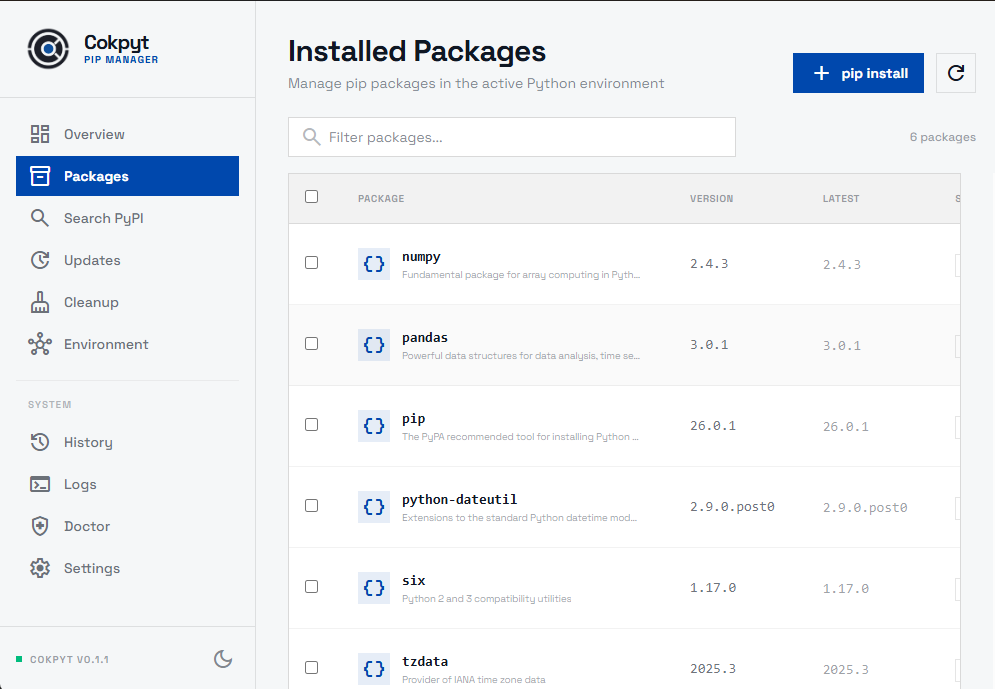
The Package Table
Each row in the table represents one installed package and shows:
| Column | Description |
|---|---|
| Package | Package name (monospace) with the package summary shown as a smaller line beneath it |
| Version | Currently installed version |
| Latest | Newest version available on PyPI — highlighted green when an update is available |
| Source | Always PyPI for pip-managed packages |
| Status | Up to date (green) or Outdated (amber) based on whether a newer version exists |
| Actions | Per-row Upgrade and Uninstall buttons; Upgrade is only active when the package is outdated |
The table is paginated for large environments and stays responsive even with hundreds of packages.
Filtering the List
Type in the search / filter box at the top of the page to narrow the table down in real time. The filter matches against both package names and descriptions, so you can search by keyword even if you don't know the exact package name.
Installing a Package
Click the blue pip install button in the page header to open the install dialog.
- Type the package name. You can optionally pin a version using pip's standard syntax:
requests- installs the latest versionrequests==2.32.0- installs exactly version 2.32.0requests>=2.28,<3- installs the latest version satisfying the constraint
- Press Enter or click Install.
A live terminal panel slides in at the bottom of the screen and streams the pip output in real time. The table refreshes automatically once the installation finishes.
Upgrading a Package
Click the Upgrade button on any row to run pip install --upgrade <package> for that package. The live terminal panel shows the output; the table refreshes when done.
To upgrade every outdated package at once, use the Update All button on either this page or the Dashboard.
Uninstalling a Package
Click Uninstall on any row. A confirmation dialog asks you to confirm before anything is deleted. The live terminal panel shows the pip output and the table refreshes once uninstallation is complete.
Bulk Uninstall
To remove multiple packages in one operation:
- Check the checkbox next to each package you want to remove.
- Click the Bulk Uninstall button that appears in the header once at least one package is selected.
- Confirm the dialog - it lists every package that will be removed.
Cokpyt runs pip uninstall -y on all selected packages and refreshes the table when finished.
Live Terminal Panel
Every install, upgrade, or uninstall operation streams raw pip output into a terminal panel that slides up from the bottom of the screen. The panel stays open so you can verify what happened. Dismiss it by clicking the �- button in the panel header.