Environments
The Environments page lets you register, switch between, and manage Python virtual environments. Every package operation in Cokpyt - installs, upgrades, uninstalls, searches - runs against whichever environment is currently active.
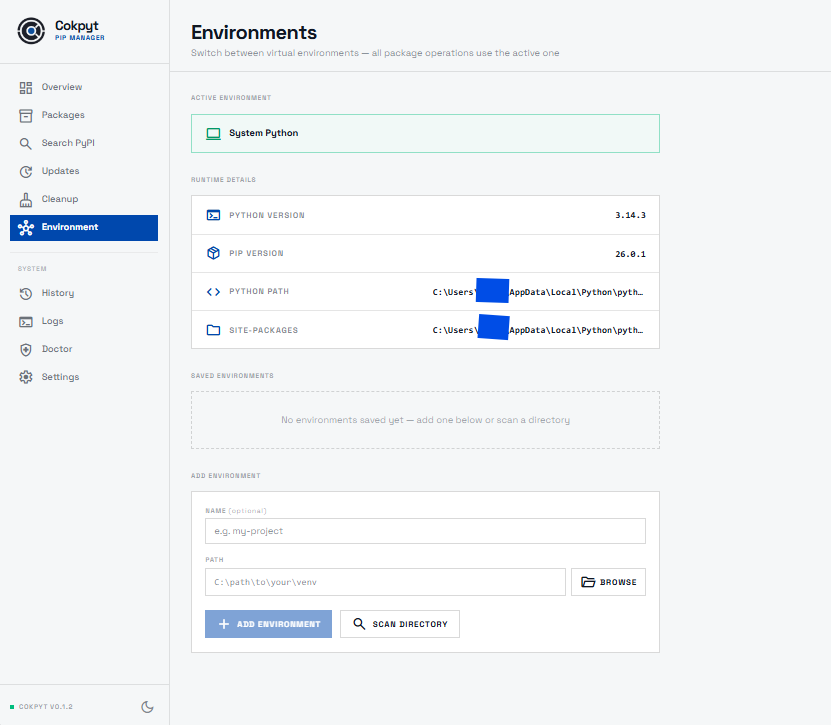
Active Environment Banner
The top of the page always shows the currently active environment at a glance.
| State | What you see |
|---|---|
| System Python | Green banner - computer icon, labelled System Python |
| venv active | Blue banner - hub icon, the saved name and full path of the venv |
When a venv is active you can click Use System Python to fall back to the global interpreter immediately.
Runtime Info
Below the banner, four cards display live details about whatever environment is active:
| Field | Description |
|---|---|
| Python Version | The version string returned by python --version |
| pip Version | The pip version installed in the active environment |
| Python Path | The absolute path to the python executable being used |
| Site-Packages | The site-packages directory where packages are installed |
These values refresh automatically whenever you switch environments.
Saved Environments
All environments you have registered appear in the Saved Environments list. Each row shows:
- The display name you gave the environment (or the directory name if you left it blank)
- The full file-system path to the venv root
- An Switch button to make it the active environment
- A Remove button to delete it from the saved list (the venv directory on disk is not touched)
The currently active environment's row is highlighted and its Switch button is replaced with an Active badge.
Adding an Environment
Manual entry
- Fill in the optional Name field - if left blank, the directory name is used.
- Enter the Path to the venv root, or click Browse to pick it from a folder dialog.
- Click Add Environment.
Cokpyt validates that the path contains a Python executable (Scripts\python.exe on Windows, bin/python on Unix). If no executable is found you will see an error - make sure the path points to the venv root and not a subdirectory.
Scan for venvs
Click Scan folder to open a folder picker. Cokpyt will scan one level deep inside the chosen directory and list every sub-folder that looks like a valid venv.
Each result can be added to your saved list with one click. Entries that are already saved are automatically excluded from the scan results.
Switching Environments
Click Switch on any saved environment row. Cokpyt will:
- Persist the choice to
config.jsonso it survives app restarts. - Refresh the Runtime Info cards with the new environment's details.
- Invalidate all cached package data (installed packages, outdated list, Python info) so the rest of the app immediately reflects the new environment.
To revert to the global interpreter at any time, click Use System Python in the active environment banner.
Removing an Environment
Click Remove on a saved environment row to deregister it from Cokpyt. This only removes the entry from the saved list - the virtual environment directory on disk is not deleted.
If you remove the environment that is currently active, Cokpyt automatically falls back to system Python.
How Cokpyt Selects the Python Executable
| Condition | Executable used |
|---|---|
A venv is set as active in config.json | <venv>/Scripts/python.exe (Windows) or <venv>/bin/python (Unix) |
No venv active, VIRTUAL_ENV env var is set | Python reported by VIRTUAL_ENV (informational only; operations still use system python) |
| Neither | Plain python - resolved from $PATH as normal |
Tips
- Name your environments - give each venv a short descriptive name (e.g.
myproject-3.12,data-science) so the active environment banner is always readable at a glance. - Use Scan when you have lots of projects - instead of adding paths one by one, point Scan at your projects root and add them all in one pass.
- Check Doctor after switching - run the Doctor page after activating a new environment to confirm that Python, pip, and PyPI connectivity are all healthy in that environment.