Logs
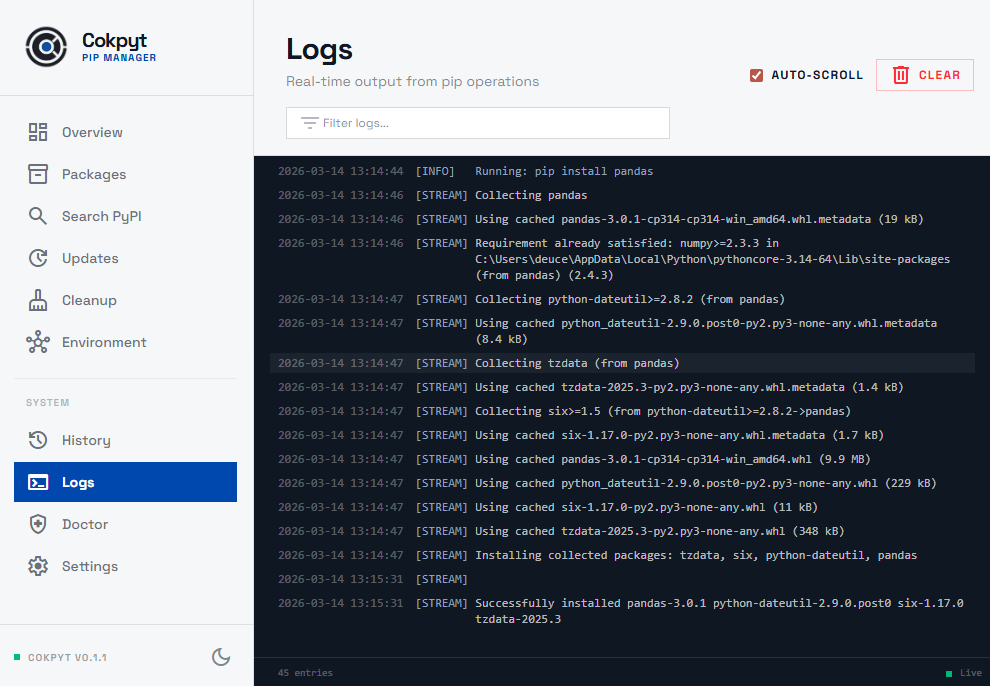
The Logs page shows raw application-level and pip-level output from the current session. It is the first place to look when something behaves unexpectedly and you want to see exactly what Cokpyt and pip exchanged under the hood.
Log Entries
Each log entry shows:
| Field | Description |
|---|---|
| Level | Severity badge - INFO, WARN, or ERROR |
| Timestamp | When the log entry was recorded |
| Message | The raw output line from pip or the Cokpyt backend |
Severity Levels
| Level | Meaning |
|---|---|
INFO | Normal operations — package resolved, command started, operation completed |
WARN | Something noteworthy that didn't stop the operation — deprecated API usage, missing optional dependency |
CRIT | A critical condition; the application or backend encountered a serious problem |
ERR | An operation failed — pip returned a non-zero exit code, a network request timed out, etc. |
Filtering Logs
Type in the Filter logs box at the top of the page to narrow the visible entries in real time. The filter matches against both the log message text and the severity level, so you can type ERR to show only errors, or a package name to find all messages related to it.
Auto-scroll
The Auto-scroll checkbox in the page header (enabled by default) keeps the view pinned to the newest entry as logs stream in. Uncheck it when you want to scroll back and read earlier entries without being pulled back to the bottom.
Clearing the Log View
Click the Clear button in the page header to wipe the current log view. This only clears the display — it does not delete the underlying history. Logs reappear if you navigate away and come back during the same session.
Entry Count
The footer of the Logs page shows the total number of visible entries after any active filter is applied.
Relationship to the Live Terminal Panel
The live terminal panel that slides up during installs and upgrades shows the same pip output in real time. The Logs page is a persistent record of that output, plus additional backend messages, that you can read after the fact without the panel being open.
When to Use Logs
- Debugging a failed install - look for
ERRORentries and read the full pip traceback. - Verifying what ran - confirm the exact pip command and flags that were used.
- Reporting a bug - copy the relevant log entries into a GitHub issue to help with diagnosis.
Session Scope
Logs are scoped to the current session. They reset when the app is closed. For a permanent record of every action taken, see the History page.